This Guide collates the different areas in Travelmesh where you can append images.
Publishing Content of the Supplier
You can attach images to your Travelmesh database by linking images in your TourWriterData folder to the Publishing Content area of Tourwriter. Images in the Publishing Content area of Travelmesh are available to use in reports and also appear when pushed online.
You can refer to the Image Path section in the Publishing Content Subtab article to go through detailed steps on how to add an image to the Publishing Content area of Tourwriter.

There are 3 occasions when you need to update the image path in the Publishing Content area:-
- When you move one or more images from a folder to another
- Delete the image altogether
- Rename the image
If the Image path points to the wrong image file, your report will display a small red cross in place of the image.
The Images Folder
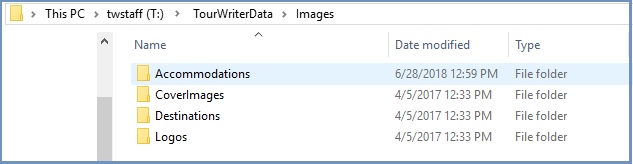
It is significant to have a clear subfolder structure inside the Images folder on your online drive. You can start off by having 4 subfolders as shown below:-
Accommodation:– A folder to store images from your accommodation supplier.
Activity:- A folder to store images from your activity and tours supplier.
CoverImages:- A folder where you can store the cover images used in different reports.
Logos:- A folder where you can store the company logo along with the different agent logos.
Voucher Logo
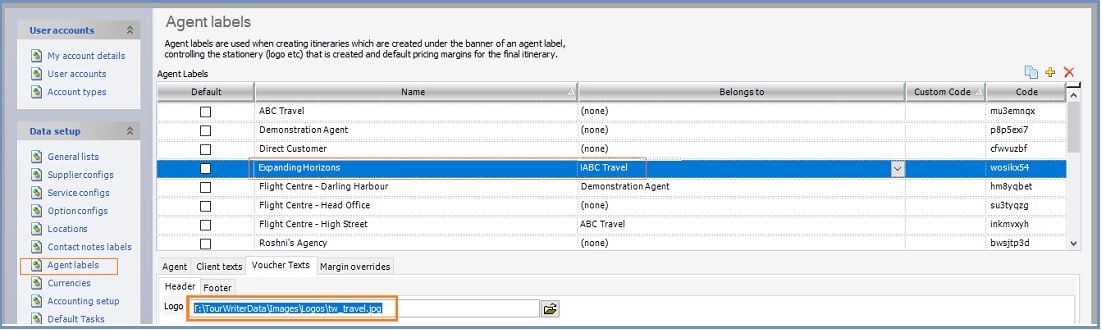
You can append your agent’s logo image on the Voucher report. To do that:-
- Add the image path in the Voucher Texts area Tourwriter.
- Navigate to Tools > Setup > Agent Labels.
- Here, highlight the Agent for whom you want to add a logo image.
- Once you do that, access the Logo field under Voucher Texts > Header > Logo
- Click the folder icon to browse to an image in your Logo subfolder.
Adding Images to your Email Signature or Booking Email Templates
Your Email Signature or the Booking Email Templates used in Travelmesh can have your company logo included by making a few HTML changes in them. See Displaying Images and Website Links in your Email Signature or Bookings Emailer Template for help.
Image Specifications
Travelmesh requires images to be in Baseline JPEG format to be exported successfully to Microsoft Word. If some of the image files that you have are in Progressive JPEG format, this can cause issues while exporting the report. You can refer to the Image Format – Baseline JPEG vs Progressive JPEG article to understand the fundamental difference between the two image formats. Additionally, you can even convert images in Progressive JPEG format to Baseline JPEG using a tool called IrfanView. The Converting Progressive JPEG Images to Baseline JPEG Images using IrfanView article tells you how.
It is preferable that images added to Travelmesh have the following format:- :
- Logo file format: JPEG format (*.jpg)
- Resolution: 96 dpi.
- Images with up to 200 dpi to 300 dpi can be used in reports, however, having a bunch of images with such high resolution may cause memory issues. It could even prevent the report from being emailed. The number of high-resolution images allowed in a single report will depend on your system configuration.
- Dimensions: 18.94cm x 14.31cm (Width x Height) for non-cover images.
Note:– Panorama images should be 18.95cm x 4.05cm. Panorama images can be 3 images stitched together so the total should equal the size mentioned.
If you’d like to resize your existing images, you can do that in Irfanview. The Resizing Images using Irfanview article will guide you through detailed steps on this.