What is the TourwriterData folder?
The TourwriterData folder is a storage folder for all Travelmesh documents such as email templates, images for reports, and customised report files (e.g. Voucher, Client Pricing and Quotation).
Travelmesh will also save a copy of all emails sent from the system here, as soon as you start sending booking requests to your Suppliers.
Your TourwriterData folder sits outside the Travelmesh database. Once created, you must link your Travelmesh database to your TourwriterData folder.
It is important that in the initial setup stage you ensure that the file path of the TourwriterData folder is accessible by all users from all PCs within your organisation.
Step 1: Setting up the TourwriterData folder
- On your shared / network drive, create a new folder called TourwriterData.
Tip: If you have an Online Drive, you will create your TourwriterData folder within that folder on your computer. - Within the TourwriterData folder, create the following Subfolders:
Images Subfolder
The Images folder will be used to file any Supplier images used on Quotations, Itineraries and any other documentation produced from the system that include images. IMPORTANT – Before you can start attaching images to the Travelmesh database, ensure you’ve established a good folder structure within your Images folder.
Reports Subfolder
The Reports folder will be used to file custom Report files such as Voucher, Client Pricing and Quotation. Save a copy of any existing Travelmesh custom reports here (.rdlc files)
Templates Subfolder
The Templates folders will be used to file custom Email or Accounting export templates. Instructions on how to save files to these locations will be provided to you during your Travelmesh training and / or as your report development takes place.
Step 2: Linking your TourwriterData folder to your Travelmesh database
IMPORTANT – You only have to update the Folder settings in Travelmesh on one person’s Tourwriter. Once saved these settings will be updated for all users.
Once your TourwriterData folder and subfolders have been created above, please follow the below instructions to link your TourwriterData folder to your Travelmesh database:
- Log into Tourwriter
- Go to Tools > Setup > Folder settings.
- Click

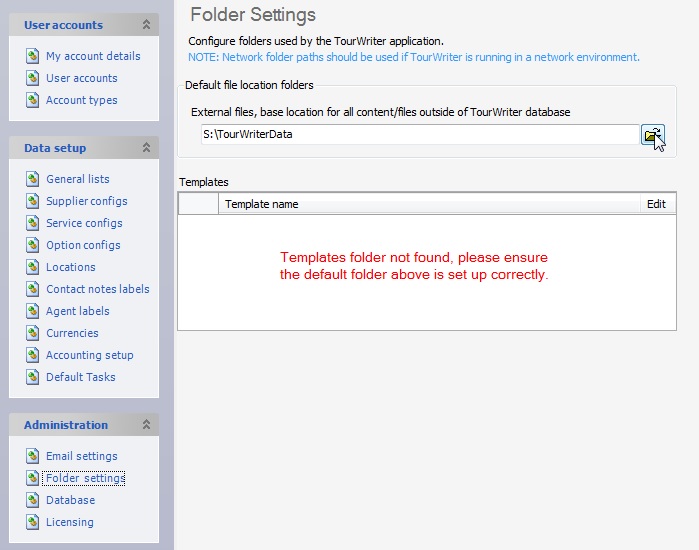
- Navigate to the TourwriterData folder you have created (select the TourwriterData folder name).
- Click OK. Your Default file location will now say e.g. X:\TourwriterData (where X = your chosen drive letter for your company)
- Save this change in Travelmesh (Ctrl + S, or the Save button on the toolbar)
- The TourwriterData folder setup is complete.