Travelmesh licensing is based on concurrent user logins. So if you are on a 3-User licence. 3 users can access Travelmesh on 3 different systems simultaneously.
There may be situations when you exceed the licence limit. In such scenarios, you will come across an error message.
Error Message
“Your Travelmesh License has been exceeded (60 minute period). Data is read only.”
This alert opens when you log into Travelmesh and pops up each time an Itinerary or Supplier is selected.
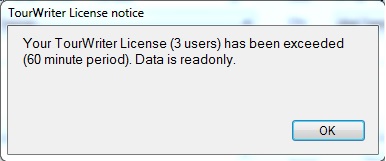
This alert is due to the User limit on your Travelmesh license being exceeded. Travelmesh checks the maximum number of Users allowed on your license and then sets everything in Travelmesh as Read Only (the Save button is also disabled) for the user that just logged in.
In the above case, the license is valid for 3 concurrent users. User 1, User 2 and User 3 are all logged-in to Travelmesh successfully, at the same time. When User 4 tries to login, they receive the license warning and will be locked out for 60 minutes. User 4 can still be logged into Tourwriter, but cannot make any changes, and will be alerted each time an Itinerary or Supplier is selected.
Scenarios that could lead to the error
You may come across the error even though you know of only 3 users accessing Travelmesh at a given time. However, there could be several reasons why you see the error.
- A 4th user may have forgotten to close Tourwriter.
- The 4th user may have accessed Travelmesh from a remote system.
- A former employee may have accessed Travelmesh in a read only mode. To avoid such a scenario, please disable the user account of the ex-employee in the Tools > Setup > User accounts area of Tourwriter.
Resolution
For the system to allocate available licenses, all locked out users, who see the error message must close Tourwriter. Otherwise all future TW logins will be locked out even when there are free/available licenses.
You may come across a scenario where, even though one of the 3 Users (User 1, 2 or 3) logs out of Tourwriter, User 4 may still be accessing Travelmesh in Read Only mode. The resolution is for User 4 to exit Travelmesh and open Travelmesh again so that the available Licence is assigned to them.
So to avoid seeing the Travelmesh Licence notice message, perform a complete reset. And to to that, all you have to do is close Travelmesh and open it again. If there’s a licence available, you’d be able to login to Tourwriter.
- Shutting the PC down without closing Tourwriter.
- Killing the Travelmesh process from the Task Manager.
- If you use Mac and do not close Travelmesh & Windows PC within Parallels, but directly shut your Mac.
Contact your Customer Success Executive at Travelmesh to purchase an additional User, or to discuss your license requirements further.